Open Instagram on your phone right now and scroll for 60 seconds. You will notice something – the accounts that feel professional, consistent, and polished all have one thing in common. Their content looks designed, not just posted. The colors match. The fonts are the same. The thumbnails are clean. The reels covers follow a pattern.
Most of those creators are using Canva Pro.
This canva pro tutorial india guide is for anyone who wants to create content for Instagram, YouTube, or LinkedIn and wants it to actually look good – without hiring a designer, without learning Photoshop, and without spending hours on every single post. Whether you are a student starting a YouTube channel, a professional building your LinkedIn presence, or a small business owner managing your own Instagram – how to use Canva Pro is the skill that ties everything together.
In this guide, you will learn how to set up Canva Pro the right way using the Brand Kit, how to make YouTube thumbnails that get clicks, how to design Instagram Reels covers and posts that stop the scroll, and how to create a LinkedIn banner that makes your profile look genuinely professional. You will also understand exactly which canva pro features india 2026 are worth using, and whether the paid plan is actually worth it for canva pro for content creators india.
Let us get into it.
What Is Canva Pro and Why Indian Content Creators Are Using It in 2026
Canva is a browser-based design tool that works on any phone, laptop, or tablet – no installation needed. You sign in, pick a template, customize it, and download your design. The free version of Canva is genuinely good. But the Pro version is what turns Canva from a quick design fix into a complete content creation system.
For canva pro for content creators india, the difference is significant. Here is what the Pro plan unlocks that the free plan does not have:
| Feature | Canva Free | Canva Pro |
| Templates | 1.6 million+ basic templates | 610,000+ premium templates (in addition to all free ones) |
| Stock assets | Limited free library | 140 million+ photos, videos, graphics, audio |
| Brand Kit | Not available | Up to 5 Brand Kits – save colors, fonts, logos |
| Background Remover | Not available | One-click background removal on any image |
| Magic Resize | Not available | Resize any design to any platform size in one click |
| Magic Studio AI | Very limited | Full access – Magic Write, Magic Expand, Dream Lab, Magic Eraser |
| Content Scheduler | Not available | Schedule posts directly to Instagram, Facebook, LinkedIn |
| Cloud storage | 5 GB | 1 TB – store all your brand assets in one place |
| Transparent PNG export | Not available | Export logos and graphics with transparent backgrounds |
In India, canva pro for content creators india has become essential because it removes the two biggest bottlenecks in content creation – design skill and design time. You do not need to know what a font pairing is. You do not need to understand color theory. Canva Pro’s premium templates and Brand Kit do that thinking for you, and Magic Studio AI accelerates the entire workflow further.
Did You Know? Canva has over 200 million monthly active users globally as of 2026, making it the most widely used design tool in the world by user count – more than Adobe Photoshop, Illustrator, and Figma combined. In India specifically, Canva is the go-to tool for creators, educators, marketers, and small business owners because it works well on mid-range Android phones and slower internet connections – something most Western design tools do not optimize for.
Also Read – Canva vs Figma – Which Is Better for Design Teams?
How to Set Up Canva Pro the Right Way – Brand Kit Kaise Use Kare
Most Indian creators open Canva, pick a template, and start designing immediately. This works for one post. But if you are creating content consistently – 3 posts a week on Instagram, thumbnails for every YouTube video, a LinkedIn banner, and graphics for LinkedIn posts – designing from scratch every time wastes hours and produces inconsistent results. The Brand Kit solves this problem.
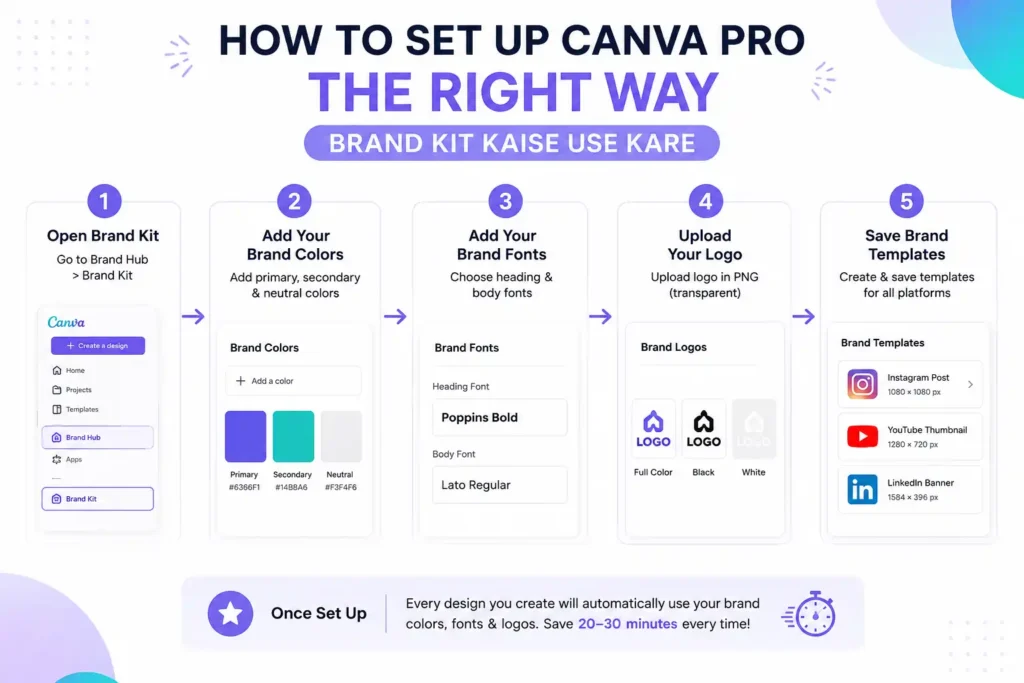
Understanding canva pro brand kit kaise use kare is the most important setup step in this entire guide. Here is how to do it:
Step 1 – Open Brand Kit
In Canva Pro, go to the left sidebar and click on ‘Brand Hub.’ Then click ‘Brand Kit.’ This is where you store everything that defines your visual identity.
Step 2 – Add Your Brand Colors
Click ‘Add a color’ and enter your brand’s hex codes. If you do not have brand colors yet, pick 3 colors: one primary (your main color), one secondary (a supporting color), and one neutral (usually white, black, or a light grey). Every design you make from now on uses these colors – and Canva Pro will suggest them first whenever you are customizing a template.
Step 3 – Add Your Brand Fonts
Pick 2 fonts – one for headings and one for body text. Canva Pro gives you access to hundreds of premium fonts. For Indian content creators, some popular combinations are: Poppins (heading) + Lato (body), Montserrat (heading) + Open Sans (body), or Playfair Display (heading) + Raleway (body). Once set, these fonts appear at the top of every font list in your designs.
Step 4 – Upload Your Logo
Upload your profile logo or watermark in PNG format with a transparent background. Canva Pro lets you store multiple logo versions – full color, white, black. Once uploaded, you can add your logo to any design in two clicks.
Step 5 – Save Brand Templates
Create your first Instagram post, YouTube thumbnail, and LinkedIn banner using your Brand Kit colors and fonts. Save these as templates inside your Brand Kit folder. From now on, every new piece of content starts from these branded templates – not a generic Canva template. This is how serious canva pro for content creators india workflows operate.
Once your Brand Kit is set up, every design you make in Canva Pro automatically applies your colors and fonts when you use the ‘Apply Brand Colors’ option. A creator who sets this up once saves 20 to 30 minutes per design session because they stop rebuilding their brand identity from scratch every time.
How to Make YouTube Thumbnail in Canva Pro India – Step by Step
Your YouTube thumbnail is the single most important design asset in your content creation workflow. Research consistently shows that thumbnail quality is one of the top factors affecting click-through rate on YouTube. A great video with a bad thumbnail gets skipped. A decent video with a great thumbnail gets clicked. Here is exactly how to make youtube thumbnail in canva pro india that actually performs:
Correct YouTube Thumbnail Size in 2026
The correct YouTube thumbnail size is 1280 x 720 pixels at 16:9 ratio. Maximum file size is 2MB. Canva Pro has a pre-built YouTube Thumbnail template at this exact size – search ‘YouTube Thumbnail’ in the search bar and select it.
The 4 Elements of a High-Click Thumbnail
- A clear face or reaction – thumbnails with human faces get significantly more clicks than thumbnails without. If your video features you, your face should be prominent in the thumbnail. Use a high-quality photo with good lighting
- Large, readable text – your thumbnail text should be readable even at the small size YouTube shows in mobile feeds and sidebar recommendations. Use a maximum of 5 to 6 words, in your Brand Kit heading font, at least 60px size
- High-contrast background – the background should contrast strongly with your text and face. If your face is on a light background, use dark text. Use Canva Pro’s Background Remover to cut out your photo and place it on a custom background color
- Consistent visual style – your thumbnail should immediately look like it belongs to your channel. When a viewer sees your thumbnail in their feed, they should recognize your style before they read the title. This is what the Brand Kit makes possible
Using Canva Pro Background Remover for Thumbnails
This is where canva pro for youtube thumbnails becomes dramatically faster than any free alternative. Upload your photo to Canva, click on it, then click ‘Edit photo’ in the top bar, then ‘BG Remover.’ Canva Pro removes the background in about 3 seconds. You can then place yourself on any background color, gradient, or image. This one feature alone is worth the Pro upgrade for any serious YouTuber.
Thumbnail Template Workflow for Indian YouTubers
Create one master thumbnail template in your Brand Kit – your background style, font placement, text zones, and logo position all saved. For every new video, you open this template, swap the photo, change the text, and download. A thumbnail that used to take 30 minutes now takes 5 to 7 minutes.
| Thumbnail Element | Specification | Canva Pro Feature Used |
| Canvas size | 1280 x 720 px | Pre-built YouTube Thumbnail template |
| Background | Solid color or gradient | Background color picker, gradient tool |
| Photo cutout | Subject isolated from background | Background Remover (1 click) |
| Text size | Minimum 60px for heading | Font size control, Brand Kit fonts |
| Text color | High contrast with background | Brand Kit colors |
| Logo/watermark | Bottom corner, 80-100px | Brand Kit logo, opacity set to 70-80% |
| File export | JPG, under 2MB | Download settings, quality selector |
Also Read – Canva vs Piktochart – Which is Best for Infographics?
Canva Pro for Instagram India – Posts, Reels Covers, and Stories
Instagram is where most Indian content creators spend the most design time – and where inconsistent content hurts the most. A professional-looking Instagram grid is not about having the best photos. It is about having consistent design across every post. canva pro for instagram india makes this achievable without a design team.
Instagram Post Sizes in 2026
Instagram updated its grid format in January 2026 – the profile grid now displays images in a 3:4 portrait ratio instead of the old square format. Here are the current sizes to use:
| Instagram Format | Recommended Size 2026 | When to Use |
| Feed Post (Portrait) | 1080 x 1350 px (4:5) | Best-performing format for feed posts in 2026 – occupies maximum screen real estate on mobile |
| Feed Post (Square) | 1080 x 1080 px (1:1) | Still valid but will appear slightly cropped on new portrait grid – use for cross-posting to LinkedIn |
| Instagram Stories | 1080 x 1920 px (9:16) | Full-screen vertical – keep text and logos in the centre 60% to avoid UI overlap |
| Reels Cover | 1080 x 1920 px (9:16) | Same as Stories size – place important content in the centre zone visible in grid view |
| Profile Picture | 400 x 400 px (1:1) | Upload high resolution – Instagram will crop to circle |
Canva Pro Instagram Reels Template India – Kaise Banaye
A canva pro instagram reels template india workflow saves significant time when you are posting reels consistently. Here is how to build one:
- Create a 1080 x 1920 px canvas in Canva Pro – this is your Reels cover template
- Add your brand background – a solid color, gradient, or a lifestyle photo with your brand color overlay at 50% opacity
- Add text zones – a space for the reel topic (large, bold, your Brand Kit heading font) and optionally a subtitle line below it
- Add your logo in the top or bottom corner using your Brand Kit logo – keep it small and at 70% opacity
- Save as a template in Canva Pro – right-click the design and select ‘Save as Template.’ Now every new reel cover starts from this branded base and takes 2 to 3 minutes to complete
- Safe zone rule – keep all text and logo within the centre area of the frame. Instagram’s grid view crops Reels covers to a square, so anything at the very top or bottom edges of your 9:16 canvas may not appear in the grid preview
Instagram Carousel Design Tips for Indian Creators
Carousels are one of the highest-engagement formats on Indian Instagram – educational carousels in Hindi or English that teach something specific consistently perform well across niches from finance to fitness to travel. In Canva Pro, design carousels at 1080 x 1350 px (portrait, the new standard) and use the same background color, font, and layout style across all slides. The first slide is your hook – it needs to stop the scroll. The last slide should have a call to action: ‘Save this’ or ‘Share with a friend.’
Did You Know? Instagram’s algorithm in 2026 gives significantly higher reach to content that gets saved and shared, compared to content that only gets likes. Carousel posts have the highest save rate of any Instagram format – users save carousels to return to the information later. For Indian creators posting educational content, this makes carousels the single highest-ROI format for organic reach growth.
How to Create a Professional LinkedIn Banner in India – Professional Profile Design
Your LinkedIn banner is the first thing someone sees when they visit your profile. For working professionals, job seekers, freelancers, and business owners in India – your LinkedIn banner is your personal billboard. Most Indian LinkedIn profiles have a default blue banner or a blurry photo. A well-designed banner immediately signals professionalism. Here is canva pro linkedin banner kaise banaye india – step by step:
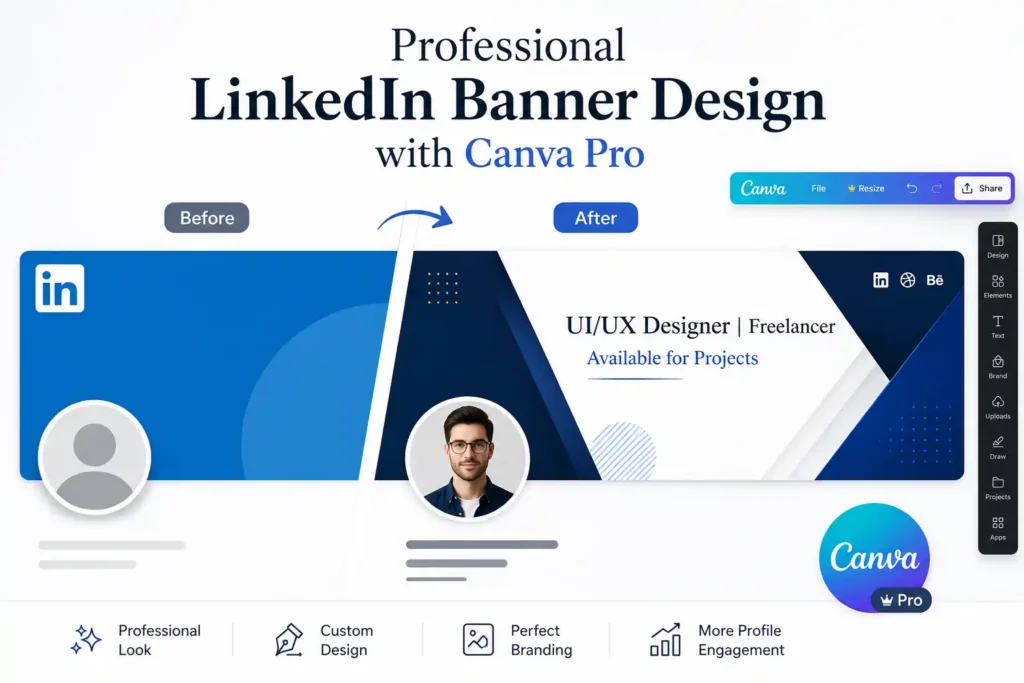
LinkedIn Banner Correct Size
The correct LinkedIn banner size is 1584 x 396 pixels at 4:1 aspect ratio. Canva Pro has a pre-built LinkedIn Banner template at this exact size.
What to Put on Your LinkedIn Banner
- Your name and title – if your profile photo already has your face, the banner can focus on your professional identity: ‘UI/UX Designer | Figma | 3+ Years Experience’
- Your key offering or specialization – for a freelancer: what you do. For a job seeker: what role you are targeting. For a business: what problem you solve
- Your brand colors and font – use your Brand Kit. If you do not have brand colors yet, pick 2 complementary colors that look professional together
- A contact nudge – optionally add ‘Available for freelance projects’ or ‘Open to opportunities’ in small text. This subtle signal works well for Indian professionals
- Avoid clutter – a LinkedIn banner with too many elements looks unprofessional. Maximum 3 design elements: background, your name/title text, and one graphic or icon
Mobile View Check
Always preview your LinkedIn banner on mobile before finalizing. On mobile, LinkedIn crops the banner differently than on desktop. Keep all critical text within the centre 60% of the banner horizontally, and avoid placing important elements in the bottom 20% of the canvas – your profile photo overlaps this area.
Also Read – Best AI Tools for Digital Marketing Agencies in 2026 – The Ultimate Guide
Canva Pro Features India 2026 – Magic Studio AI Tools Explained
The biggest upgrade in canva pro features india 2026 is Magic Studio – Canva’s AI tool suite. In 2026, Magic Studio has become significantly more capable, and for Indian content creators who are not professional designers, it is a genuine time-saver. Here are the tools that matter:
| Magic Studio Tool | What It Does | Best Use Case for Indian Creators |
| Magic Write | AI text generator – write captions, headings, descriptions from a prompt | Instagram captions, YouTube descriptions, LinkedIn post text |
| Magic Resize | Resize any design to any platform size instantly | Turn an Instagram post into a LinkedIn post, Stories into Reels cover – one click |
| Background Remover | Remove photo background in 3 seconds | Thumbnail creation, product photos, profile cutouts |
| Magic Eraser | Remove any object from a photo by painting over it | Removing distractions from photos, cleaning up backgrounds |
| Magic Expand | Extend a photo beyond its original edges | Making vertical photos work as horizontal banners and vice versa |
| Dream Lab | AI image generator – create images from text prompts | Unique background images, conceptual visuals, illustration-style graphics |
| Magic Design | Generate a complete designed layout from a text prompt or uploaded image | First-draft creation for any content format – saves blank-canvas paralysis |
For canva pro tutorial india – the two Magic Studio features to master first are Magic Resize and Background Remover. Magic Resize alone saves Indian content creators who post across multiple platforms an enormous amount of time – you design once for Instagram, then click once to resize for LinkedIn, once for YouTube thumbnail, once for Stories. What used to take 4 separate design sessions now takes one.
How to Schedule Content from Canva Pro – Direct Platform Publishing for Indian Creators
One of the most underused canva pro features india 2026 is the built-in content scheduler. Canva Pro lets you publish and schedule content directly to Instagram, Facebook, LinkedIn, Pinterest, and Twitter/X – without switching to a separate scheduling tool. Here is how it works:
- Design your post in Canva Pro as you normally would
- Click ‘Share’ in the top right corner, then select ‘Schedule’
- Connect your social accounts – you will need to authorize Canva to access your Instagram, LinkedIn, or Facebook account once. After that, it stays connected
- Pick your date and time and click ‘Schedule Post.’ Canva publishes it automatically at the chosen time
- View your content calendar inside Canva Pro’s Content Planner – you can see all your scheduled posts across platforms in a calendar view
For Indian content creators who manage multiple platforms and post 3 to 5 times per week, this feature alone reduces the daily workload significantly. You can batch-create a week’s content in one sitting on Sunday and schedule everything to post automatically throughout the week.
Canva Pro Free vs Paid Features India 2026 – Complete Honest Comparison
The canva pro free vs paid features india 2026 question comes down to one thing: how often do you create content? Here is the honest breakdown:
- If you create 1 to 2 designs per month – the free plan is enough. You will find what you need in the free template library, and the limitations will not affect you significantly
- If you create content weekly – you will hit the free plan’s limits quickly. No Brand Kit means no consistent visual identity. No Background Remover means every thumbnail takes longer. No Magic Resize means every platform gets a separate design session
- If you are a serious content creator posting 3 to 5 times per week – Canva Pro is not optional, it is necessary. The time saved per week on the Pro plan – across Background Remover, Magic Resize, Brand Kit, and Magic Studio – easily justifies the cost
- If you manage content for clients or a business – Canva Pro’s 1 TB storage, 5 Brand Kits, and scheduling features make it the professional-grade option
The specific features that drive the most value for Indian creators on Canva Pro are:
| Feature | Time Saved per Week | Worth Upgrading For? |
| Brand Kit | 45-60 mins – no rebuilding brand colors and fonts per design | Yes – game changer for consistency |
| Background Remover | 15-20 mins per thumbnail or product photo | Yes – essential for YouTube creators |
| Magic Resize | 20-30 mins – no separate design for each platform | Yes – critical for multi-platform creators |
| Premium Templates | 10-15 mins – higher quality starting points | Yes – especially for LinkedIn and YouTube |
| Content Scheduler | 20-30 mins – no separate scheduling tool needed | Yes – for creators posting multiple times/week |
| Magic Studio AI | 15-25 mins – faster concept creation and editing | Yes – especially Magic Write and Dream Lab |
Also Read – How to Use Figma for UI Design
Is Canva Pro Worth It for Indian Content Creators in 2026 – Honest Answer
This is the most direct version of the answer: canva pro for content creators india is worth it if you create content regularly – and not worth it if you design occasionally.
Here is the real-world case for Indian creators:
- A YouTuber posting 2 videos per week needs 2 thumbnails every week. Without Canva Pro’s Background Remover and Brand Kit, each thumbnail takes 20 to 30 minutes minimum. With Canva Pro, each thumbnail takes 5 to 7 minutes. Over a month, that is 6 to 8 hours saved – on thumbnails alone
- An Instagram creator posting 4 times per week needs 16 to 18 designs per month. Without Brand Kit, every design starts from scratch with inconsistent results. With Brand Kit and Magic Resize, the same content batch takes a fraction of the time and looks professionally consistent
- A LinkedIn professional posting 3 times per week needs clean, professional graphics that represent their personal brand. Canva Pro’s premium templates and Brand Kit make this achievable without any design background
- A freelancer managing client social media needs to switch between different brand identities for different clients. Canva Pro’s 5 Brand Kits handle this – one Brand Kit per client, all stored in one account
The canva pro for content creators india investment makes sense when the time it saves is worth more than its cost – and for anyone creating content more than twice per week, that calculation is clear. Canva Pro is available at significantly discounted rates through PremiumToolsHub, making it accessible even for creators who are just starting to monetize their work.
Did You Know? Canva’s internal data shows that users who set up a Brand Kit produce content 3.5 times faster than users who start from blank templates. For Indian creators managing their own social media alongside jobs or studies, this speed advantage is significant – it is the difference between content creation being a time burden and it being a manageable part of your weekly routine.
Also Read – Best Tools for Startups in 2026: The Complete Startup Software Stack Guide
Ready to Get Canva Pro at a Price That Makes Sense for Indian Creators – Start Here
You have done the hard work.
You now know exactly how to use Canva Pro for Instagram, YouTube, and LinkedIn – from setting up your Brand Kit and making thumbnails to scheduling content, using Magic Studio AI, and building a consistent visual identity across every platform. The only question left is – do you have access to Canva Pro at a price that fits your creator budget?
At PremiumToolsHub, we have helped 650+ agencies, freelancers, and content creators across 15+ countries access the exact same premium tools they were already using – just at prices that finally make sense. Here is what you get when you work with us:
- Proper billing invoice with every purchase – every transaction is clean, documented, and professional. You get a proper invoice with each purchase so your records are always in order, with zero ambiguity about what you paid and what you received.
- Real human support on WhatsApp, 9 AM to 12 AM IST – no bots, no ticket queues, no waiting three days for a reply. A real person answers your WhatsApp message and resolves your issue – usually within a few hours, sometimes within minutes.
- 100% legitimate access through proper licensing – all tool access is provisioned through official family plans, team workspaces, corporate licensing tiers, and authorized reseller programs. No cracked software. No stolen accounts. No risk to your content or brand.
- Way more than just Canva Pro – PremiumToolsHub gives you access to a full range of premium tools across AI and productivity, design and creative, business and career – all in one place, all backed by the same warranty and support.
Visit premiumtoolshub.in or send a message on WhatsApp to see exactly how much you could be saving – starting from your very next billing cycle.
FAQ – People Also Ask
Is Canva Pro worth it for Indian content creators in 2026?
Yes – for Indian creators who post content more than twice per week across Instagram, YouTube, or LinkedIn, canva pro for content creators india is worth the investment. The key features that justify the upgrade are the Brand Kit (saves 45 to 60 minutes per week by eliminating brand rebuilding), Background Remover (cuts thumbnail and product photo time by 60 to 70%), Magic Resize (one design resized for all platforms instantly), and the Content Scheduler (no separate scheduling tool needed). For creators posting occasionally – once or twice per month – the free plan is sufficient. But for consistent creators, the time Canva Pro saves per week compounds significantly over a month.
How to use Canva Pro Brand Kit for Instagram and YouTube?
To use canva pro brand kit kaise use kare: go to Brand Hub in your Canva Pro left sidebar, click Brand Kit, and add your brand colors (hex codes), fonts (one heading, one body), and logos (PNG with transparent background). Once set up, open any Instagram or YouTube template and click ‘Apply Brand’ to replace the template’s colors and fonts with yours instantly. Save your first branded Instagram post and YouTube thumbnail as templates inside your Brand Kit folder. Every future design starts from these branded templates – not a generic Canva template – which keeps your content consistent across both platforms.
What is the difference between Canva Free and Canva Pro in India?
The main differences in canva pro free vs paid features india 2026 are: templates (1.6 million basic on free vs 610,000+ premium on Pro, plus all free ones), stock assets (limited free library vs 140 million+ photos, videos, and graphics), Brand Kit (not available on free, up to 5 Brand Kits on Pro), Background Remover (not available on free, one-click on Pro), Magic Resize (not available on free, unlimited on Pro), Magic Studio AI access (very limited on free, full access on Pro), Content Scheduler (not available on free, full scheduling on Pro), and cloud storage (5 GB free vs 1 TB Pro). The free plan works for casual design. The Pro plan is built for consistent creators.
Can Canva Pro be used to make YouTube thumbnails for free?
Canva Free does let you create YouTube thumbnails using the pre-built 1280 x 720 px template and access to free stock photos and basic templates. However, the features that make canva pro for youtube thumbnails significantly more effective – Background Remover, premium photo library, Brand Kit for consistent thumbnail style, and unlimited version history – are all Pro-only. You can technically make thumbnails on the free plan, but the quality ceiling is noticeably lower, and the time per thumbnail is higher because you are working without the key automation features. For any creator who uploads more than 4 videos per month, the Canva Pro workflow for thumbnails saves enough time to clearly justify the upgrade.
Conclusion – Your Canva Pro Content Creation System for India in 2026
Let us bring everything together. Canva pro tutorial india is not just about learning a tool – it is about building a content creation system that works consistently, week after week, without burning hours on design.
You now know how to set up your Brand Kit so every piece of content you create looks like it belongs to the same brand. You know exactly how to make youtube thumbnail in canva pro india – the right size, the right elements, the Background Remover workflow, and the template system that cuts your thumbnail time from 30 minutes to 5. You know the current canva pro instagram reels template india sizes and the safe zone rules that apply after Instagram’s 2026 grid update. You know canva pro linkedin banner kaise banaye india in a way that makes your profile stand out from the default blue banners that most Indian professionals still have.
You understand the complete canva pro features india 2026 picture – what Magic Studio AI does, which features save the most time, and why the canva pro free vs paid features india 2026 comparison clearly favors Pro for anyone creating content more than twice per week. And you know the scheduling workflow that lets you batch your entire week’s content in one session.
The canva pro for instagram india and canva pro for youtube thumbnails workflows in this guide are not theoretical. They are what serious Indian content creators are using right now to grow their presence without a design team.
Start with your Brand Kit. Build your first thumbnail template. Create your LinkedIn banner. Put your brand in front of your audience – consistently, professionally, and without spending your entire week on design. That is what Canva Pro makes possible.